
SharePoint
Read documents from and write converted outputs to SharePoint and OneDrive for Business
SharePoint Connector
The SharePoint connector allows you to read documents from and write converted outputs to SharePoint sites and OneDrive for Business using Microsoft Graph API with app-only authentication. Use it as both a source (to read documents for conversion) and a target (to write converted results).
Prerequisites
- Microsoft Entra ID (Azure AD) Registration: You must register an application in the Azure Portal to obtain API credentials.
- Admin Access: Tenant administrator privileges to grant API permissions
- SharePoint Site or OneDrive: Access to a SharePoint site or OneDrive for Business account
Setup and Authentication
1. Create App Registration
- Log in to the Azure Portal
- Navigate to Microsoft Entra ID (formerly Azure AD)
- Go to Add → *App Registration
- Enter a name (e.g., "Docling SharePoint Connector")
- Choose Single tenant (or multi-tenant if needed)
- Click Register
- Note the Application (client) ID and Directory (tenant) ID
2. Grant API Permissions
- In your app registration, go to API permissions
- Click Add a permission → Microsoft Graph → Application permissions
- Add the following permissions:
For Source (reading):
Sites.Read.All- Read items in all site collectionsFiles.Read.All- Read files in all site collections
For Target (writing):
Sites.ReadWrite.All- Read and write items in all site collectionsFiles.ReadWrite.All- Read and write files in all site collections
- Click Grant admin consent for your tenant (requires admin privileges)
3. Create Client Secret
- Go to Certificates & secrets
- Click New client secret
- Enter a description and choose expiration
- Click Add
- Copy the secret value immediately (it won't be shown again)
4. Identify Tenant
Your tenant identifier can be:
- Tenant ID (GUID): From the app registration overview page
- Tenant domain: e.g.,
example.onmicrosoft.comorexample.com
5. Get SharePoint Site URL or User Email
For SharePoint:
- Site URL format:
https://your-org.sharepoint.com/sites/your-site - Find it by navigating to your SharePoint site and copying the URL
For OneDrive for Business:
- User principal name (email):
[email protected] - Note: Only OneDrive for Business (Entra-backed) is accessible with app-only credentials
Configuration
The SharePoint connector can be used as both a source and target in the Batch API.
Required Parameters
| Parameter | Type | Description |
|---|---|---|
kind | string | Must be "sharepoint" |
tenant | string | Microsoft Entra tenant ID (GUID) or domain (e.g., example.onmicrosoft.com) |
client_id | string | Application (client) ID from app registration |
client_secret | string | Client secret value |
Required (Choose One)
site_url(string) - SharePoint site URL (e.g.,https://your-org.sharepoint.com/sites/your-site)- OR
onedrive_user(string) - User principal name for OneDrive for Business (e.g.,[email protected])
Optional Parameters
| Parameter | Type | Default | Description |
|---|---|---|---|
document_library | string | Site's default library | (SharePoint only) Display name of the document library to use |
folder_path | string | Library/drive root | Folder path within the library. For sources, subfolders are traversed recursively. For targets, specifies destination folder |
file_ids | array | [] | (Source only) Explicit item IDs to process. Overrides folder traversal |
max_num_elements | integer | null | (Source only) Maximum number of documents to process |
Connector-Specific Behavior
As a Source
When used as a source, the connector:
- Traverses folders recursively: Processes all files in
folder_pathand its subfolders - Respects file_ids: If specified, only processes those specific items
- Respects limits: Stops after
max_num_elementsfiles if specified - Uses Graph API: Accesses files through Microsoft Graph, not direct SharePoint REST API
As a Target
When used as a target, the connector:
- Writes to folder: Uploads converted outputs to the specified
folder_path - Creates folder if needed: The destination folder is created automatically
- Non-destructive: Never modifies or deletes source files
- Preserves filenames: Output files named based on source filename and format
SharePoint vs OneDrive
-
SharePoint (
site_url): Access document libraries within a SharePoint site- Can specify which document library with
document_libraryparameter - Defaults to the site's default library if not specified
- Can specify which document library with
-
OneDrive for Business (
onedrive_user): Access a user's OneDrive- Resolves to
/users/{onedrive_user}/drivein Graph API - Only works with Entra-backed OneDrive accounts (not personal accounts)
- Resolves to
Security and Permissions
Required Microsoft Graph Permissions
The app registration must have Application permissions (not Delegated):
Minimum for Source:
Sites.Read.AllandFiles.Read.All
Minimum for Target:
Sites.ReadWrite.AllandFiles.ReadWrite.All
Admin Consent
Application permissions require tenant admin consent. Contact your Microsoft 365 administrator if you cannot grant consent yourself.
Limitations
- OneDrive for Business Only: Personal OneDrive accounts are not accessible with app-only credentials.
- Rate Limits: Subject to Microsoft Graph API throttling limits. See Microsoft Graph throttling guidance.
Usage Examples
There are three main ways to interface with the connectors. All use the same underlying POST /v1/convert/source/batch endpoint.
Tasks UI
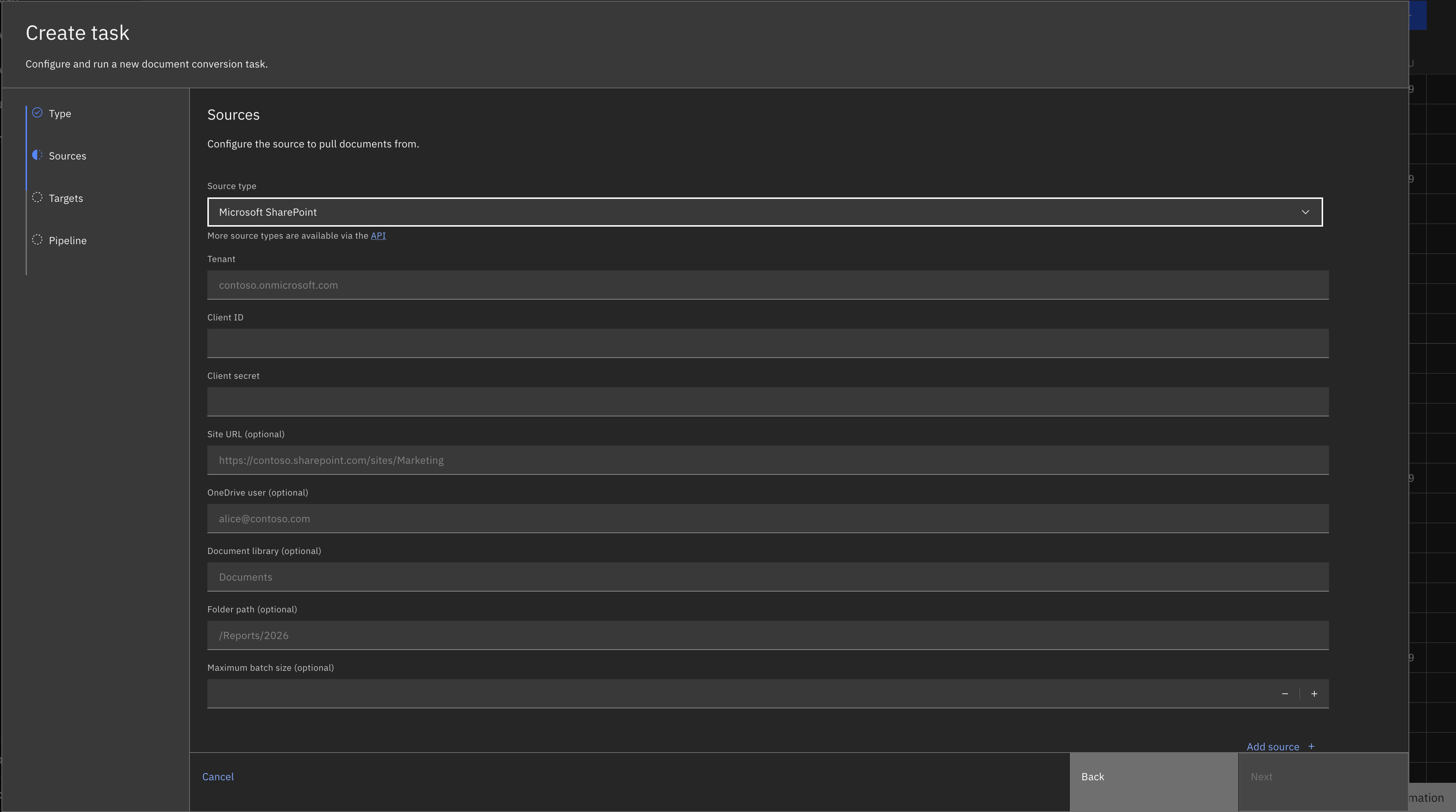
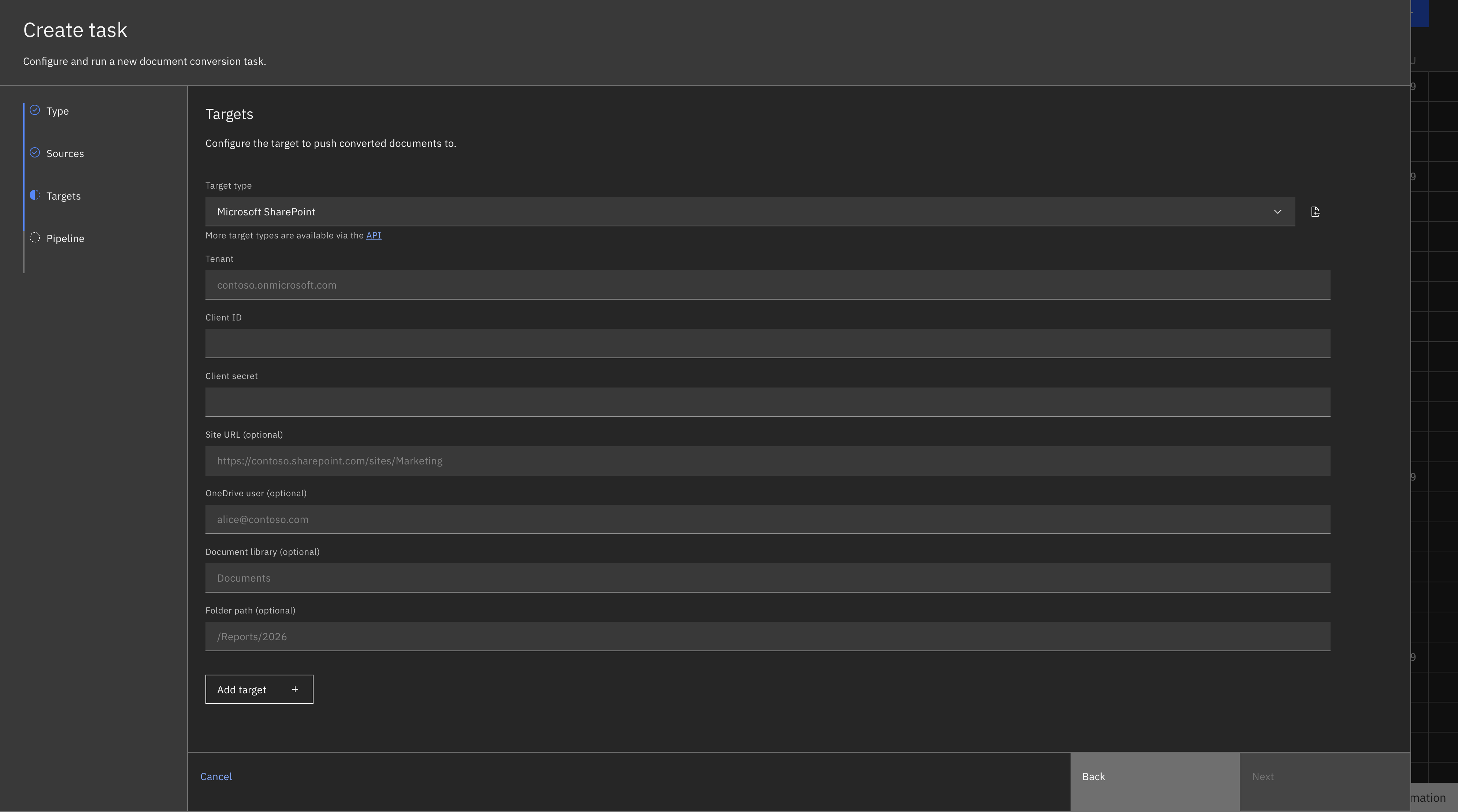
Navigate to the Tasks view and select "Create Task +". Select Batch as the task type (connectors use batch tasks, not single).
Fill in the fields as prompted. They should correspond to the fields gathered above (excluding 'kind').
SharePoint as a Source
SharePoint as a Target
REST API
curl -X POST "${DOCLING_SERVICE_URL}/v1/convert/source/batch" \
  -H "X-Api-Key: ${DOCLING_API_KEY}" \
  -H "Content-Type: application/json" \
  -d '{
    "sources": [
      {
        "kind": "sharepoint",
        "tenant": "example.onmicrosoft.com",
        "client_id": "12345678-1234-1234-1234-123456789abc",
        "client_secret": "YOUR_CLIENT_SECRET",
        "site_url": "https://your-org.sharepoint.com/sites/your-site",
        "document_library": "Documents",
        "folder_path": "/Reports/2026",
        "max_num_elements": 50
      }
    ],
    "target": {
      "kind": "sharepoint",
      "tenant": "contoso.onmicrosoft.com",
      "client_id": "12345678-1234-1234-1234-123456789abc",
      "client_secret": "YOUR_CLIENT_SECRET",
      "site_url": "https://contoso.sharepoint.com/sites/Marketing",
      "document_library": "Documents",
      "folder_path": "/Converted"
    },
    "options": {
      "to_formats": ["md", "json"]
    }
  }'
OneDrive for Business
curl -X POST "${DOCLING_SERVICE_URL}/v1/convert/source/batch" \
  -H "X-Api-Key: ${DOCLING_API_KEY}" \
  -H "Content-Type: application/json" \
  -d '{
    "sources": [
      {
        "kind": "sharepoint",
        "tenant": "example.onmicrosoft.com",
        "client_id": "12345678-1234-1234-1234-123456789abc",
        "client_secret": "YOUR_CLIENT_SECRET",
        "onedrive_user": "[email protected]",
        "folder_path": "/Work Documents"
      }
    ],
    "target": {
      "kind": "presigned_url"
    },
    "options": {
      "to_formats": ["md"]
    }
  }'
Python SDK
Python SDK Note: This connector is not included in the standard docling.datamodel.service package. When using the Python SDK, configure it using GenericSourceRequest with keyword arguments. You do not need to install docling-jobkit.
from docling.service_client import DoclingServiceClient
from docling.datamodel.service.requests import GenericSourceRequest
from docling.datamodel.service.targets import GenericTargetRequest
import os

SERVICE_URL = os.getenv("DOCLING_SERVICE_URL")
API_KEY = os.getenv("DOCLING_API_KEY")

# SharePoint source
source = GenericSourceRequest(
    kind="sharepoint",
    tenant="example.onmicrosoft.com",
    client_id="12345678-1234-1234-1234-123456789abc",
    client_secret="YOUR_CLIENT_SECRET",
    site_url="https://your-org.sharepoint.com/sites/your-site",
    folder_path="/Reports/2026",
    max_num_elements=50
)

# SharePoint target
target = GenericTargetRequest(
    kind="sharepoint",
    tenant="example.onmicrosoft.com",
    client_id="12345678-1234-1234-1234-123456789abc",
    client_secret="YOUR_CLIENT_SECRET",
    site_url="https://your-org.sharepoint.com/sites/your-site",
    folder_path="/Converted"
)

with DoclingServiceClient(url=SERVICE_URL, api_key=API_KEY) as client:
    job = client.submit_batch(
        sources=[source],
        target=target,
        output_formats=["md", "json"]
    )

    # Wait for completion
    response = job.result()
    print(f"Processed {response.num_converted} documents")
    print(f"Succeeded: {response.num_succeeded}")
    print(f"Failed: {response.num_failed}")
Related Documentation
- Batch API Reference - Complete batch endpoint documentation
- Connectors Overview - All available connectors
- Microsoft Graph Documentation - Official Microsoft Graph documentation
- SharePoint Graph API - SharePoint-specific Graph APIs
- App-only authentication - Microsoft Graph app-only auth guide
- Graph API throttling - Rate limits and best practices