
Google Drive
Read documents from and write converted outputs to Google Drive
Google Drive Connector
The Google Drive connector allows you to read documents from and write converted outputs to Google Drive using OAuth 2.0 authentication. Use it as both a source (to read documents for conversion) and a target (to write converted results). Supports both personal Google Drive accounts and Google Workspace.
Prerequisites
- Google Account: Personal or Google Workspace account with Drive access
- Google Cloud Project: A GCP project with Drive API enabled
- OAuth 2.0 Credentials: Client ID and client secret
- OAuth Token: Refresh token or token file for authentication
Setup and Authentication
1. Create Google Cloud Project and Enable Drive API
If you haven't already:
- Go to the Google Cloud Console
- Create a new project or select an existing one
- Navigate to APIs & Services → Library
- Search for "Google Drive API"
- Click Enable
2. Set Up OAuth Consent Screen
- Go to APIs & Services → OAuth consent screen
- Choose External (for testing/personal) or Internal (for Google Workspace)
- Fill in required fields (app name, user support email, developer contact)
- Add scopes:
https://www.googleapis.com/auth/drive.readonly(for reading)https://www.googleapis.com/auth/drive.file(for writing)
- Add test users if using External type
- Save and continue
3. Create OAuth 2.0 Client ID
- Go to APIs & Services → Credentials
- Click Create Credentials → OAuth client ID
- Choose Desktop app as application type
- Enter a name (e.g., "Docling Drive Connector")
- Click Create
- Download the JSON credentials file
The credentials file contains:
{
  "installed": {
    "client_id": "123456789-abc.apps.googleusercontent.com",
    "project_id": "my-project",
    "auth_uri": "https://accounts.google.com/o/oauth2/auth",
    "token_uri": "https://oauth2.googleapis.com/token",
    "auth_provider_x509_cert_url": "https://www.googleapis.com/oauth2/v1/certs",
    "client_secret": "YOUR_CLIENT_SECRET",
    "redirect_uris": ["http://localhost"]
  }
}
4. Generate Refresh Token
You need to generate an OAuth refresh token to authenticate API requests. There are two approaches:
Option A: Use Google's OAuth 2.0 Playground
- Go to OAuth 2.0 Playground
- Click the gear icon (⚙️) in the top right
- Check Use your own OAuth credentials
- Enter your Client ID and Client secret
- In "Step 1", select Drive API v3 and choose appropriate scopes
- Click Authorize APIs
- Sign in with your Google account
- In "Step 2", click Exchange authorization code for tokens
- Copy the Refresh token
Option B: Use OAuth Client Library
See Google's OAuth 2.0 documentation for generating tokens programmatically.
5. Get File or Folder ID
To specify which files/folders to process, you need their IDs from the Drive URL:
Folder:
https://drive.google.com/drive/folders/AAAAAAAAFolder ID: AAAAAAAA
File:
https://docs.google.com/document/d/BBBBBBBB/editFile ID: BBBBBBBB
Configuration
The Google Drive connector can be used as both a source and target in the Batch API.
Required Parameters
| Parameter | Type | Description |
|---|---|---|
kind | string | Must be "google_drive" |
path_id | string | File or folder ID from Google Drive URL |
Authentication Parameters
You must provide both credential information AND token information:
Credentials (choose one):
credentials_path(string) - Path to OAuth 2.0 credentials JSON file- OR
credentials(object) - OAuth 2.0 credentials object (see structure below)
Token (choose one):
token_path(string) - Path to save/load OAuth token JSON file- OR
refresh_token(string) - Pre-generated refresh token string
Credentials Object
When providing credentials inline, include these fields:
| Field | Type | Description |
|---|---|---|
client_id | string | OAuth 2.0 Client ID |
project_id | string | Google Cloud project ID |
auth_uri | string | Authorization endpoint URI |
token_uri | string | Token endpoint URI |
auth_provider_x509_cert_url | string | X.509 certificate URL |
client_secret | string | OAuth 2.0 client secret |
redirect_uris | array | OAuth 2.0 redirect URIs |
Connector-Specific Behavior
As a Source
When used as a source with a folder ID, the connector:
- Traverses recursively: Reads all files in the specified folder and all subfolders
- Maintains file metadata: Preserves original filenames and folder paths
When used with a file ID:
- Processes only that specific file
As a Target
When used as a target with a folder ID:
- Writes to folder: Uploads converted outputs to the specified folder
- Creates new files: Does not modify source files
- Preserves filenames: Output files named based on source filename and format
File/Folder Selection
- Single File: Provide the file ID from the document URL
- Folder: Provide the folder ID from the folder URL - all files in the folder and its subfolders are processed recursively
Security and Permissions
Required OAuth Scopes
As a Source:
https://www.googleapis.com/auth/drive.readonly- Read-only access to Drive
As a Target:
https://www.googleapis.com/auth/drive.file- Read and write access to files created by the app
Full Access (both source and target):
https://www.googleapis.com/auth/drive- Full access to all Drive files
User Permissions
Your Google account must have:
- Access to the files/folders specified by
path_id - Appropriate Drive permissions (Viewer for source, Editor for target)
Limitations
- File Types: Only processes files that Drive can export/download (native Google Docs are automatically exported)
- Rate Limits: Subject to Google Drive API quotas (see Drive API limits)
Usage Examples
There are three main ways to interface with the connectors. All use the same underlying POST /v1/convert/source/batch endpoint.
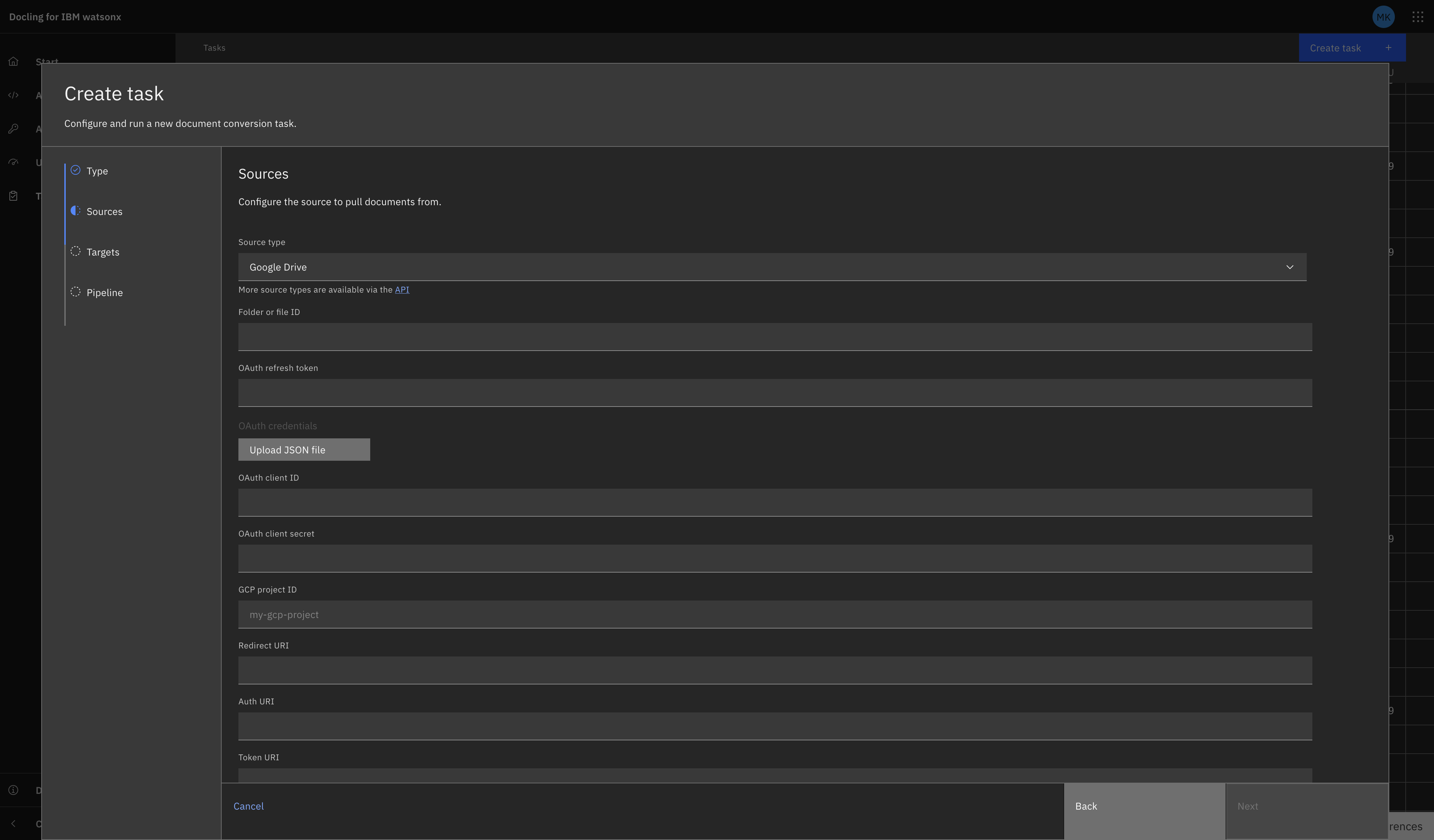
Tasks UI
Navigate to the Tasks view and select "Create Task +". Select Batch as the task type (connectors use batch tasks, not single).
Fill in the fields as prompted. They should correspond to the fields gathered above (excluding 'kind').
Google Drive as a Source
Google Drive as a Target
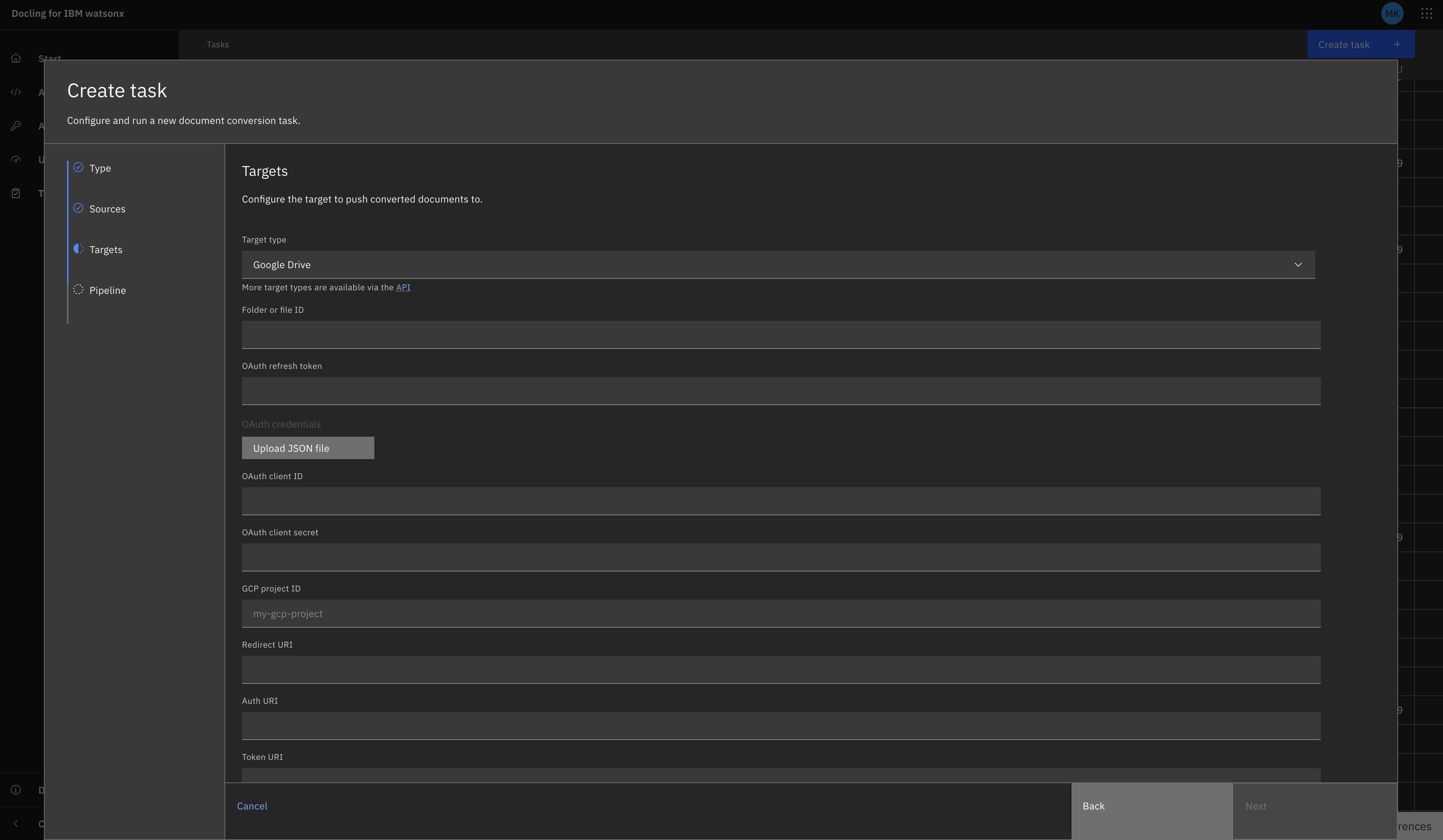
You are given the option to upload a JSON file to populate the OAuth credentials here.
REST API
curl -X POST "${DOCLING_SERVICE_URL}/v1/convert/source/batch" \
  -H "X-Api-Key: ${DOCLING_API_KEY}" \
  -H "Content-Type: application/json" \
  -d '{
    "sources": [
      {
        "kind": "google_drive",
        "path_id": "1yucgL9WGgWZdM1TOuKkeghlPizuzMYb5",
        "token_path": "./google_drive_token.json",
        "credentials_path": "./google_drive_credentials.json"
      }
    ],
    "target": {
      "kind": "google_drive",
      "path_id": "19eEXsv5aHnJ7owWbOTuObLd-Ur9x0bmn",
      "token_path": "./google_drive_token.json",
      "credentials_path": "./google_drive_credentials.json"
    },
    "options": {
      "to_formats": ["md", "json"]
    }
  }'
Using Inline Credentials and Refresh Token
curl -X POST "${DOCLING_SERVICE_URL}/v1/convert/source/batch" \
  -H "X-Api-Key: ${DOCLING_API_KEY}" \
  -H "Content-Type: application/json" \
  -d '{
    "sources": [
      {
        "kind": "google_drive",
        "path_id": "1yucgL9WGgWZdM1TOuKkeghlPizuzMYb5",
        "refresh_token": "YOUR_REFRESH_TOKEN",
        "credentials": {
          "client_id": "123456789-abc.apps.googleusercontent.com",
          "project_id": "my-project",
          "auth_uri": "https://accounts.google.com/o/oauth2/auth",
          "token_uri": "https://oauth2.googleapis.com/token",
          "auth_provider_x509_cert_url": "https://www.googleapis.com/oauth2/v1/certs",
          "client_secret": "YOUR_CLIENT_SECRET",
          "redirect_uris": ["http://localhost"]
        }
      }
    ],
    "target": {
      "kind": "presigned_url"
    },
    "options": {
      "to_formats": ["md"]
    }
  }'
Python SDK
from docling.service_client import DoclingServiceClient
from docling.datamodel.service.requests import GoogleDriveSourceRequest
from docling.datamodel.service.targets import GoogleDriveTarget
import os

SERVICE_URL = os.getenv("DOCLING_SERVICE_URL")
API_KEY = os.getenv("DOCLING_API_KEY")

with DoclingServiceClient(url=SERVICE_URL, api_key=API_KEY) as client:
    job = client.submit_batch(
        sources=[
            GoogleDriveSourceRequest(
                path_id="1yucgL9WGgWZdM1TOuKkeghlPizuzMYb5",
                token_path="./google_drive_token.json",
                credentials_path="./google_drive_credentials.json"
            )
        ],
        target=GoogleDriveTarget(
            path_id="19eEXsv5aHnJ7owWbOTuObLd-Ur9x0bmn",
            token_path="./google_drive_token.json",
            credentials_path="./google_drive_credentials.json"
        ),
        output_formats=["md", "json"]
    )

    # Wait for completion
    response = job.result()
    print(f"Processed {response.num_converted} documents")
    print(f"Succeeded: {response.num_succeeded}")
    print(f"Failed: {response.num_failed}")
Related Documentation
- Batch API Reference - Complete batch endpoint documentation
- Connectors Overview - All available connectors
- Google Drive API Documentation - Official Drive API documentation
- OAuth 2.0 for Native Apps - OAuth setup guide
- OAuth 2.0 Playground - Tool for generating refresh tokens
- Drive API Limits - Rate limits and quotas