Azure Blob Storage
Read documents from and write converted outputs to Azure Blob Storage
Azure Blob Storage Connector
The Azure Blob Storage connector allows you to read documents from and write converted outputs to Azure Blob Storage containers. Use it as both a source (to read documents for conversion) and a target (to write converted results).
Prerequisites
- Azure Storage Account: Create a storage account in the Azure Portal
- Storage Container: Create one or more containers for your documents
- Connection String: Obtain from Azure Portal → Storage Account → Access Keys
Setup and Authentication
Get Connection String
- In the Azure Portal, navigate to your storage account
- Go to "Access keys" under Security + networking
- Click "Show keys"
- Copy the "Connection string" from key1 or key2
The connection string format:
DefaultEndpointsProtocol=https;AccountName=<account>;AccountKey=<key>;EndpointSuffix=core.windows.netSee Azure documentation on connection strings for more details.
Create Container (if needed)
If your target container doesn't exist:
- Navigate to "Containers" under Data storage in your storage account
- Click "+ Container"
- Enter a container name (lowercase, alphanumeric, and hyphens only)
Configuration
The Azure Blob Storage connector can be used as both a source and target in the Batch API.
Required Parameters
| Parameter | Type | Description |
|---|---|---|
kind | string | Must be "azure_blob" |
account_name | string | Azure Storage account name |
container | string | Container name to read from or write to |
connection_string | string | Azure Storage connection string for authentication |
Optional Parameters
| Parameter | Type | Default | Description |
|---|---|---|---|
blob_prefix | string | "" | Prefix for blob names (folder path). For sources, filters which blobs to read. For targets, prepends to output blob names |
max_num_elements | integer | null | (Source only) Maximum number of blobs to process from this source |
Connector-Specific Behavior
As a Source
When used as a source, the connector:
- Traverses the container: Reads all blobs matching the
blob_prefixfilter - Respects limits: Stops after
max_num_elementsblobs if specified - Maintains hierarchy: Blob names preserve the original folder structure
- Filters by prefix: Only processes blobs whose names start with
blob_prefix
As a Target
When used as a target, the connector:
- Writes to container: Uploads converted outputs to the specified container
- Preserves structure: Maintains source document folder structure in blob names
- Adds prefix: Prepends
blob_prefixto all output blob names for organization - Non-destructive: Never modifies or deletes source blobs
Blob Naming
- Source blobs:
<blob_prefix><original-blob-name> - Target blobs:
<blob_prefix><source-filename>.<format>
Example: Source blob documents/report.pdf with blob_prefix: "converted/" becomes converted/report.md
Authentication
The connector uses connection string authentication, which includes:
- Account name
- Account key (shared key authentication)
- Endpoint suffix (usually
core.windows.net)
Security and Permissions
Required Permissions
The connection string must have permissions for:
As a Source:
- List blobs in container
- Read blob data
As a Target:
- Write blob data
Recommended Role: Storage Blob Data Contributor (for both read and write)
Network Access
Ensure your Docling deployment can reach Azure Storage:
- Azure Storage uses HTTPS (port 443)
- Public endpoint:
<account-name>.blob.core.windows.net - For private endpoints, ensure network connectivity to your VNet
Limitations
- Connection String Authentication Only: Currently supports connection string auth. Azure Managed Identity and SAS tokens are not yet supported.
- Container Must Exist: The connector does not create containers. Create them manually before running batch jobs.
- Throughput: Subject to Azure Storage account limits based on your tier and redundancy settings.
Usage Examples
There are three main ways to interface with the connectors. All use the same underlying POST /v1/convert/source/batch endpoint.
Tasks UI
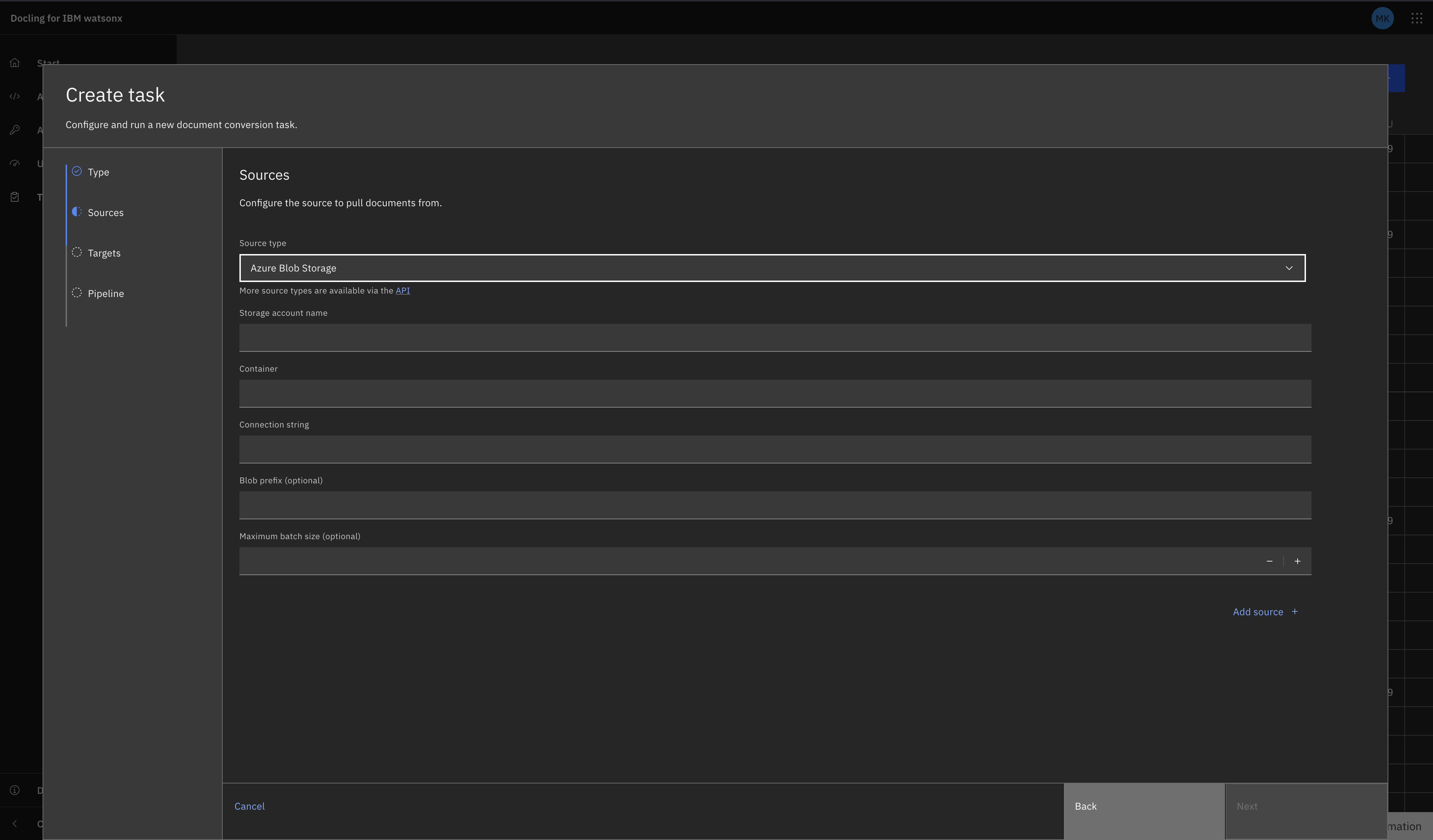
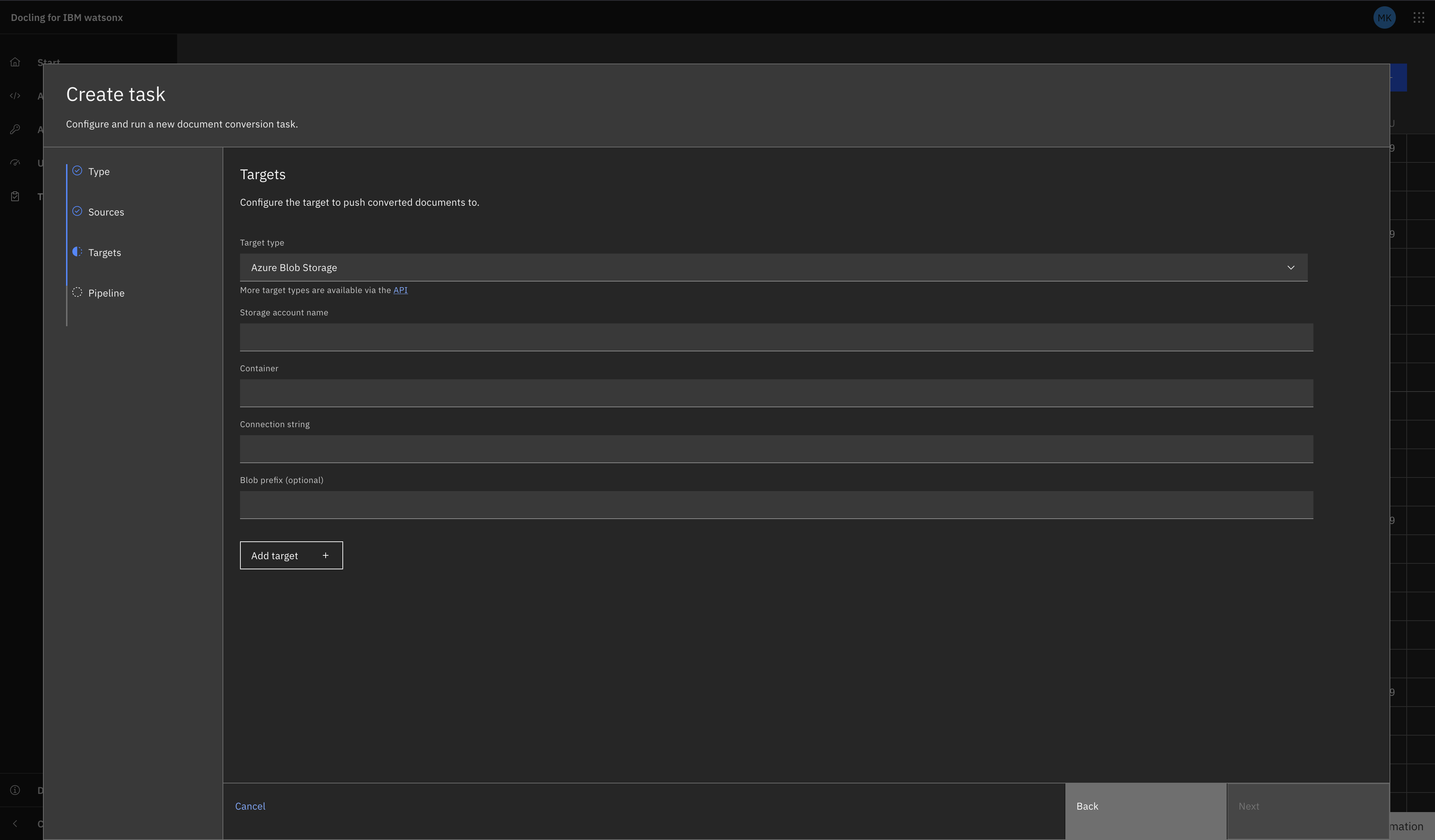
Navigate to the Tasks view and select "Create Task +". Select Batch as the task type (connectors use batch tasks, not single).
Fill in the fields as prompted. They should correspond to the fields gathered above (excluding 'kind')
Azure Blob as a Source
Azure Blob as a Target
REST API
curl -X POST "${DOCLING_SERVICE_URL}/v1/convert/source/batch" \
  -H "X-Api-Key: ${DOCLING_API_KEY}" \
  -H "Content-Type: application/json" \
  -d '{
    "sources": [
      {
        "kind": "azure_blob",
        "account_name": "mystorageaccount",
        "container": "input-documents",
        "connection_string": "DefaultEndpointsProtocol=https;AccountName=mystorageaccount;AccountKey=YOUR_ACCOUNT_KEY;EndpointSuffix=core.windows.net",
        "blob_prefix": "pdfs/",
        "max_num_elements": 100
      }
    ],
    "target": {
      "kind": "azure_blob",
      "account_name": "mystorageaccount",
      "container": "output-documents",
      "connection_string": "DefaultEndpointsProtocol=https;AccountName=mystorageaccount;AccountKey=YOUR_ACCOUNT_KEY;EndpointSuffix=core.windows.net",
      "blob_prefix": "converted/"
    },
    "options": {
      "to_formats": ["md", "json"]
    }
  }'
Python SDK
from docling.service_client import DoclingServiceClient
from docling.datamodel.service.requests import AzureBlobSourceRequest
from docling.datamodel.service.targets import AzureBlobTarget
import os

SERVICE_URL = os.getenv("DOCLING_SERVICE_URL")
API_KEY = os.getenv("DOCLING_API_KEY")
AZURE_CONNECTION_STRING = os.getenv("AZURE_STORAGE_CONNECTION_STRING")

with DoclingServiceClient(url=SERVICE_URL, api_key=API_KEY) as client:
    job = client.submit_batch(
        sources=[
            AzureBlobSourceRequest(
                account_name="mystorageaccount",
                container="input-documents",
                connection_string=AZURE_CONNECTION_STRING,
                blob_prefix="pdfs/",
                max_num_elements=100
            )
        ],
        target=AzureBlobTarget(
            account_name="mystorageaccount",
            container="output-documents",
            connection_string=AZURE_CONNECTION_STRING,
            blob_prefix="converted/"
        ),
        output_formats=["md", "json"]
    )

    # Wait for completion
    response = job.result()
    print(f"Processed {response.num_converted} documents")
    print(f"Succeeded: {response.num_succeeded}")
    print(f"Failed: {response.num_failed}")
Related Documentation
- Batch API Reference - Complete batch endpoint documentation
- Connectors Overview - All available connectors
- Azure Blob Storage Documentation - Official Azure documentation